Upgrading UniFi UAP AC Pro to U7 Pro XG

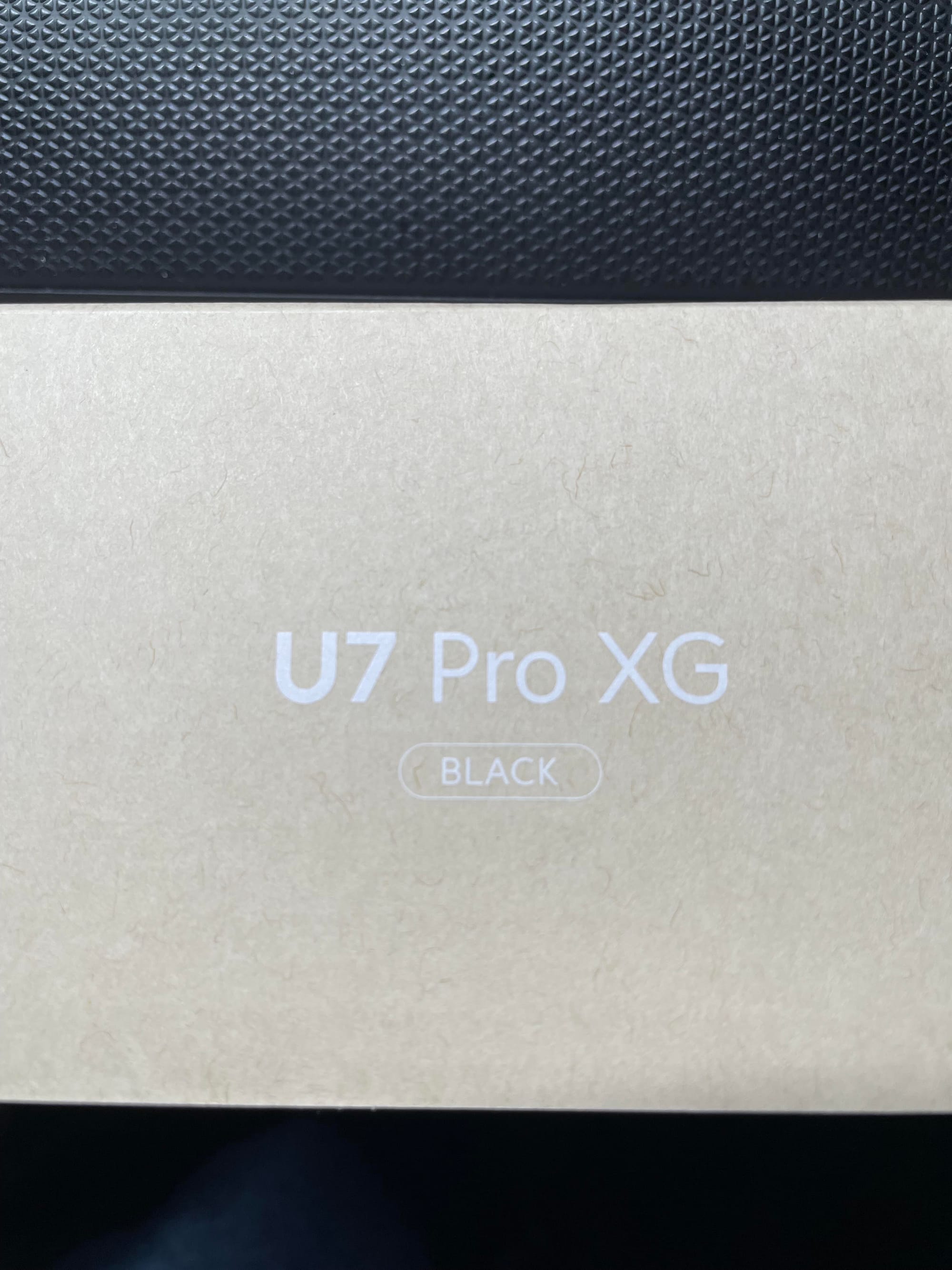
I recently upgraded my home network with a U7 Pro XG access point. Coming from an AC Pro that I had since 2020, the reason I upgraded was mainly for
WiFi 7 support since I have recently been using more WiFi 7 devices like my work computer, a Dell Pro 14 Plus, a Macbook Pro M5 Pro, and an iPhone 17 Pro. Ubiquiti UniFi APs or access points, are "wireless networking devices made by Ubiquiti for connecting users to a wired network over WiFi". Unlike consumer routers that combine WiFi and routing in one box, a UniFi AP is a "dedicated wireless radio". It broadcasts a wireless signal and bridges that traffic to your wired network. They were designed for coverage, performance, and scale. Benefits of using a Ubiquiti access point include:
- Scalability: Unifi APs scale from a single home AP to hundreds of devices across multiple sites. Specifically, all devices share the same controller with no additional licensing fees. This means that you can manage many devices across different sites. This is what UniFi calls them as distinct physical locations that you want to manage in addition to your home network like a vacation home, your parents home network, etc.
- Simplified Centralized management: You adopt every device into the UniFi OS Server under one dashboard for configuration, monitoring, and firmware updates across the entire network.
- High Performance throughput: Technologies like MU-MIMO, and band steering deliver faster data transfer and ensure wireless devices are automatically guided to the best frequency band 2.4 GHz, 5 GHz, or 6 GHz for optimal performance. These features are especially valuable in high-density client environments.
- VLAN and guest networking: You can configure isolated guest SSIDs or guest networks, IoT networks, and department-specific wireless segments - all from the same AP, without additional hardware. This is a security best practice especially if you have IoT devices and don't wish for them to connect to your main network where all your other devices are connected to.
- 802.11r Fast Roaming: UniFi APs support seamless roaming so clients move between access points without dropping connections.
- Power over Ethernet (PoE): Every UniFi AP draws power through its Ethernet cable. You'll need a PoE adapter sold separately for the specific model of access point you have. Each PoE adapter delivers different wattage. Make sure to check the max power consumption of the access point to see which PoE adapter you need. The U7 Pro XG max power consumption is listed as 22W. So either a PoE+ or PoE++ adapter will work. I went with PoE++ as it delivers up to 60W to ensure I don't run into any power issues. PoE+ delivers 30W which is somewhat near the 22W max power consumption for the U7 Pro XG.
Taken together, these features make UniFi access points effective for environments ranging from single-family homes to large campuses. The platform grows with your network rather than requiring replacement as demands increase. Most of the above features may be "overkill" for your home network. Perhaps even just buying a Ubiquiti AP. However if you want more control, visibility, and telemetry of how your wireless home network is configured and how your wireless devices are performing, get yourself a Ubiquiti AP.
Setup
Your setup will differ as I am not using any other Ubiquiti device like cloud gateway or router at the moment. I expect most users who are just starting to learn more about home networking are just using their ISP router which is my current setup. I do plan in the future t0 get myself a cloud gateway when the need arises. Go ahead and plug your PoE adapter to an outlet. There are two ports on the adapter. One is a LAN port for connecting to your router, and the PoE+ or PoE++ port for delivering power and data to your access point.
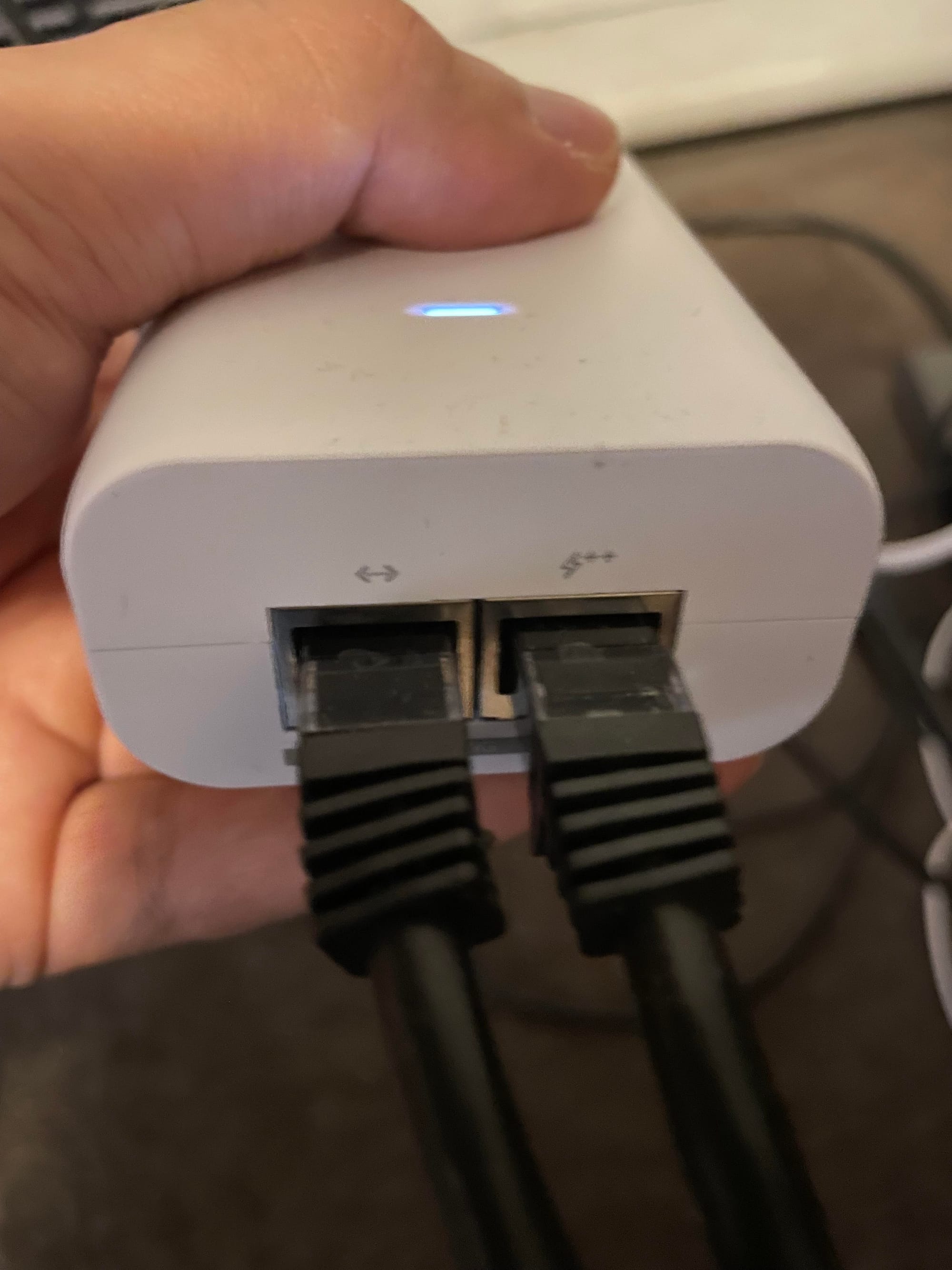
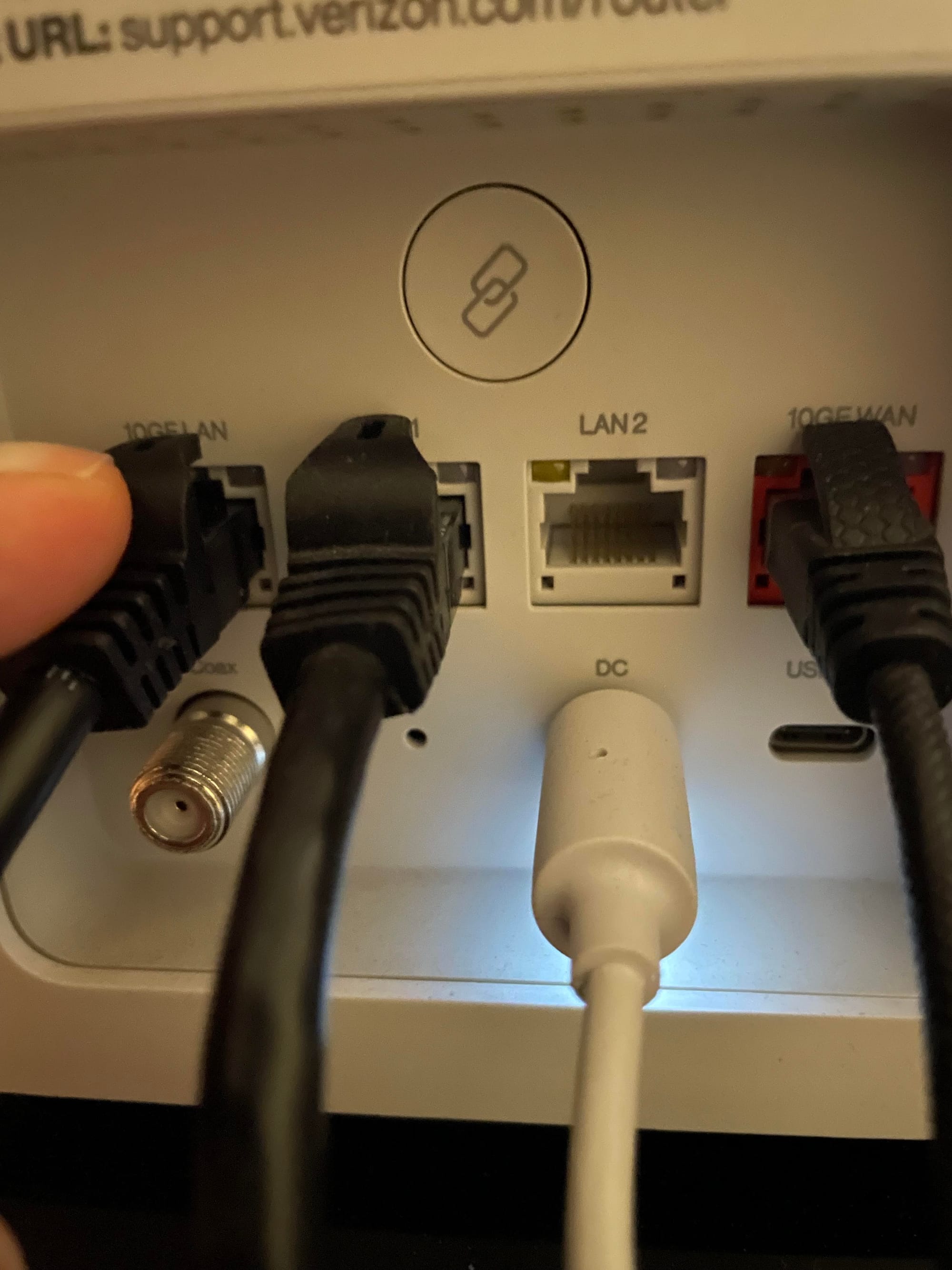
Connect two ethernet cables. One ethernet cable connects from one end of your access point to the PoE port, while the other ethernet cable gets connected from the LAN port of your PoE adapter to the LAN port of your router. If you're using a Verizon Fios router like me, the LAN port you should connect to is the one labeled 10GE LAN.
The AP will power up flashing white / off every 1/2s. It will then emit a steady white light indicating the AP is ready for adoption. This is the term used to describe the process in connecting a UniFi device like access point to the UniFi OS Server. To start the process you will need to follow three simple steps. 1. Obtain the IP address of your AP. You can log in to your router to get the IP. Each router has its own login instructions so please refer to your router. 2. ssh to the AP using PuTTY or PowerShell. 3. Use the Set-Inform command to adopt the AP.
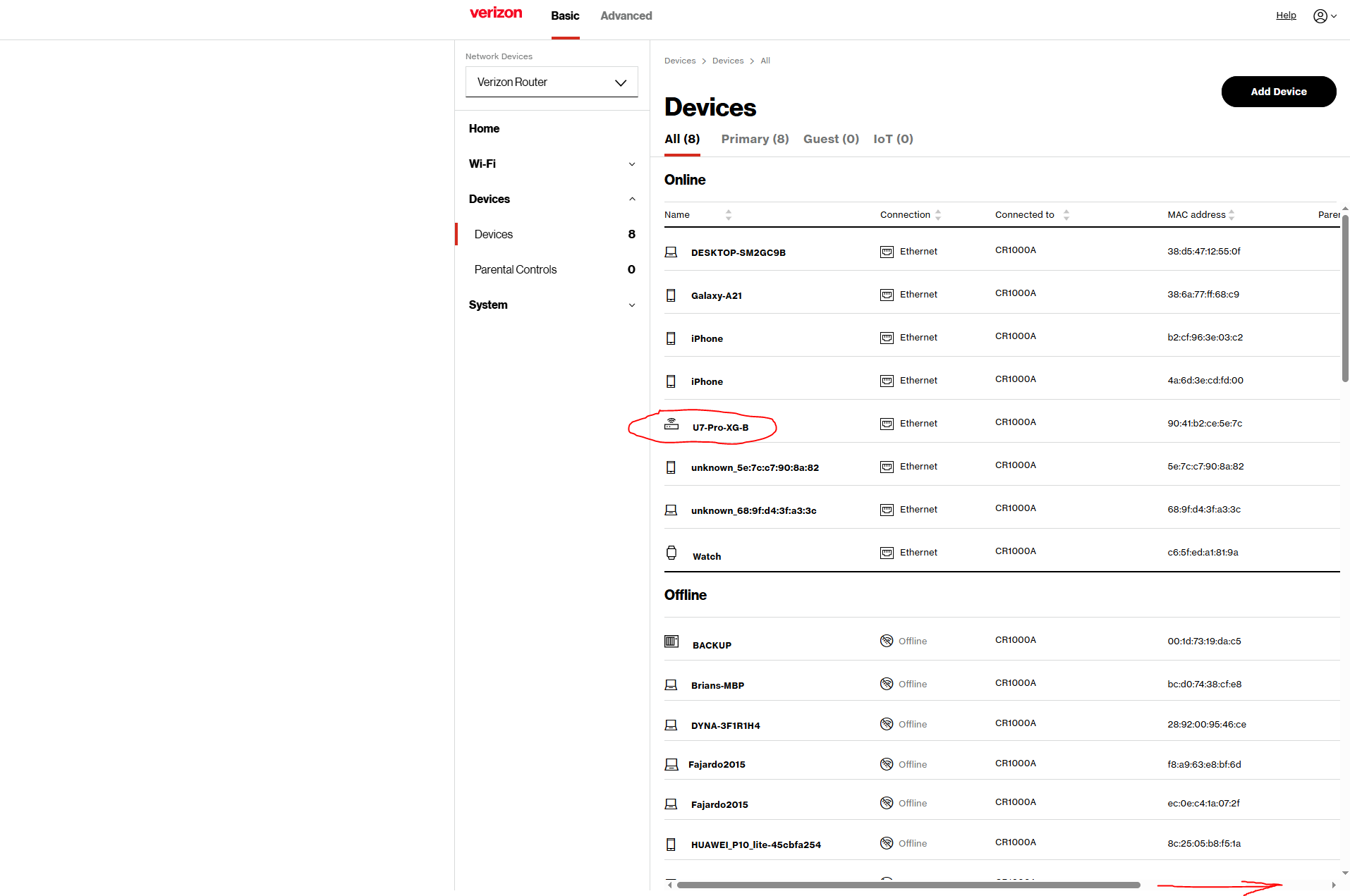
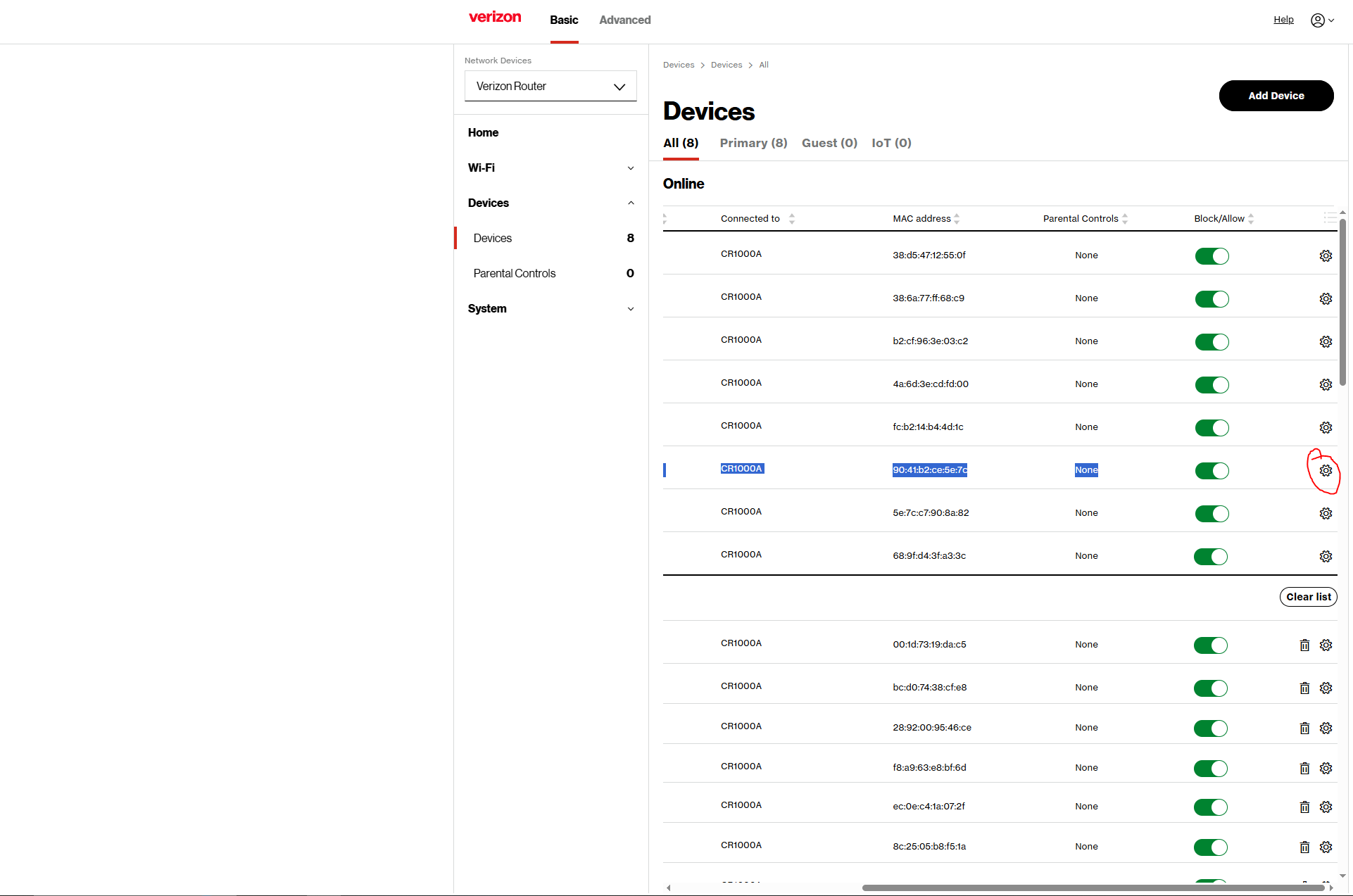
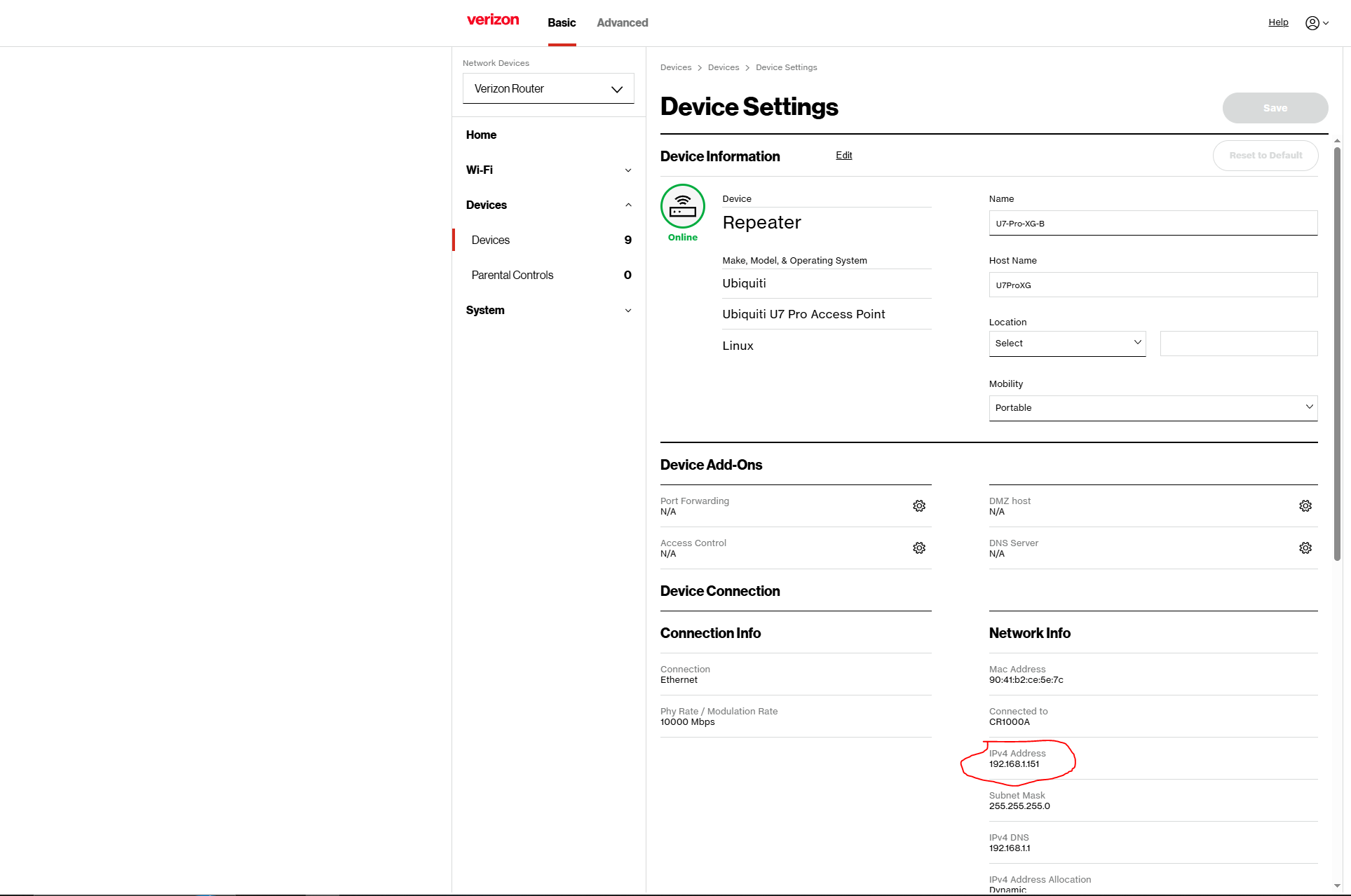
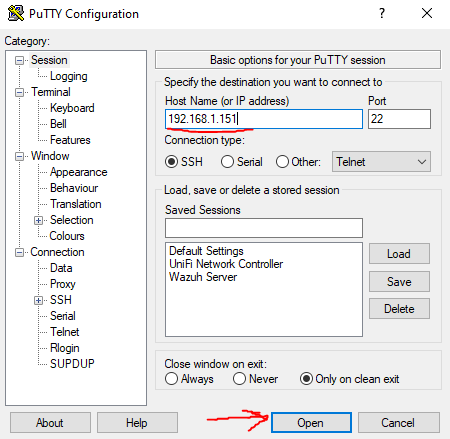
Now that you have the IP of your Ubiquiti AP, ssh to it using whatever method you wish to use. I used PuTTY.
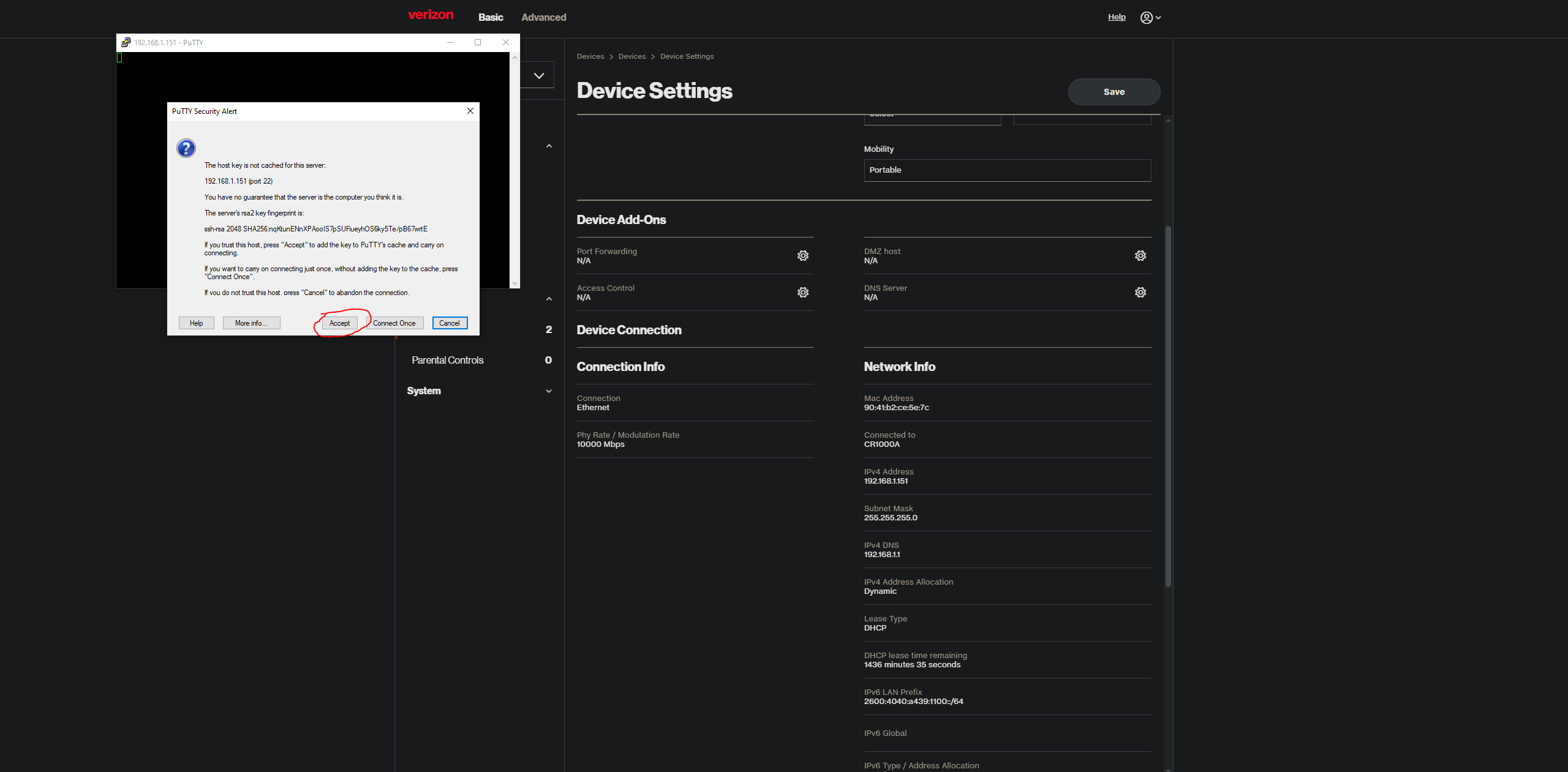
When trying to ssh for the first time, you will receive a similar prompt alerting you that the server you are trying to connect to its fingerprint cannot be established. This is a normal security feature to simply let the user know that their PuTTY client has no prior record of this server in its locally stored known_hosts file. Go ahead and click Yes to connect to the AP.
The username and password to connect via ssh to any Ubiquiti AP is the default ubnt. So type in ubnt for username and ubnt for password. I HIGHLY RECOMMEND you change the password. Even though your AP is not accessible over the internet, it's still a good security practice to ALWAYS change default settings for any system.
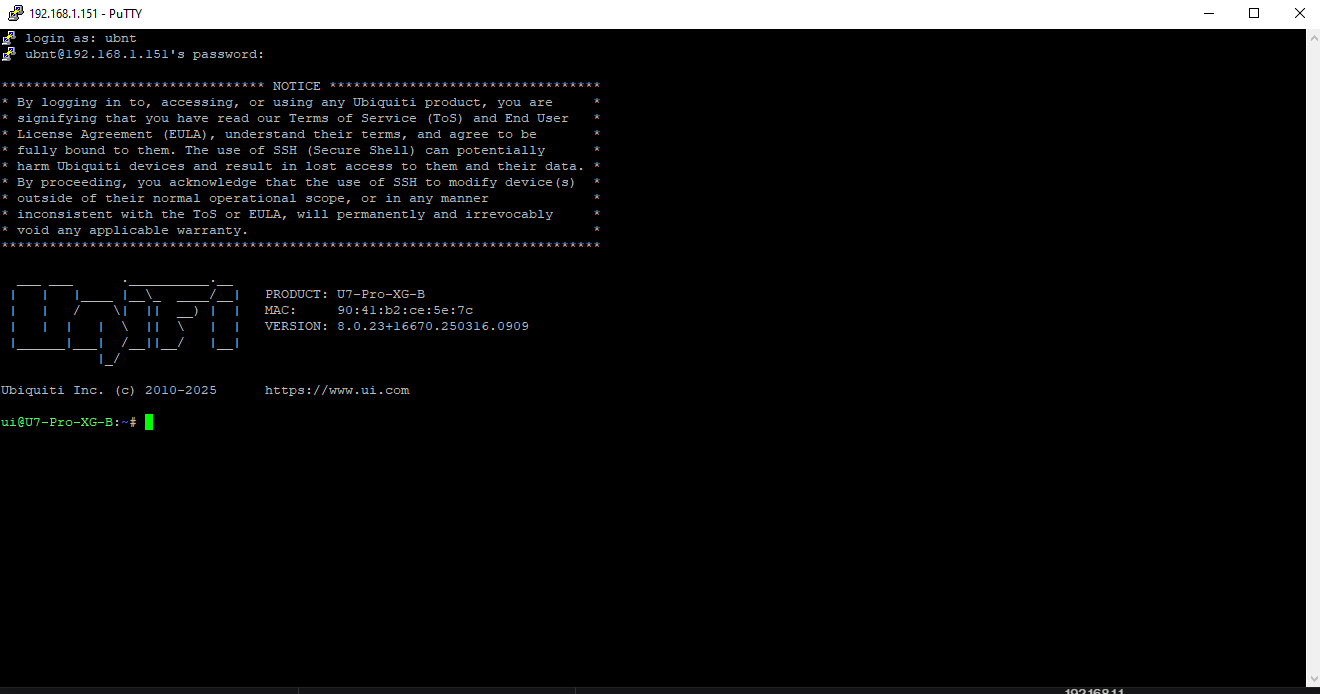
Now type in the command:
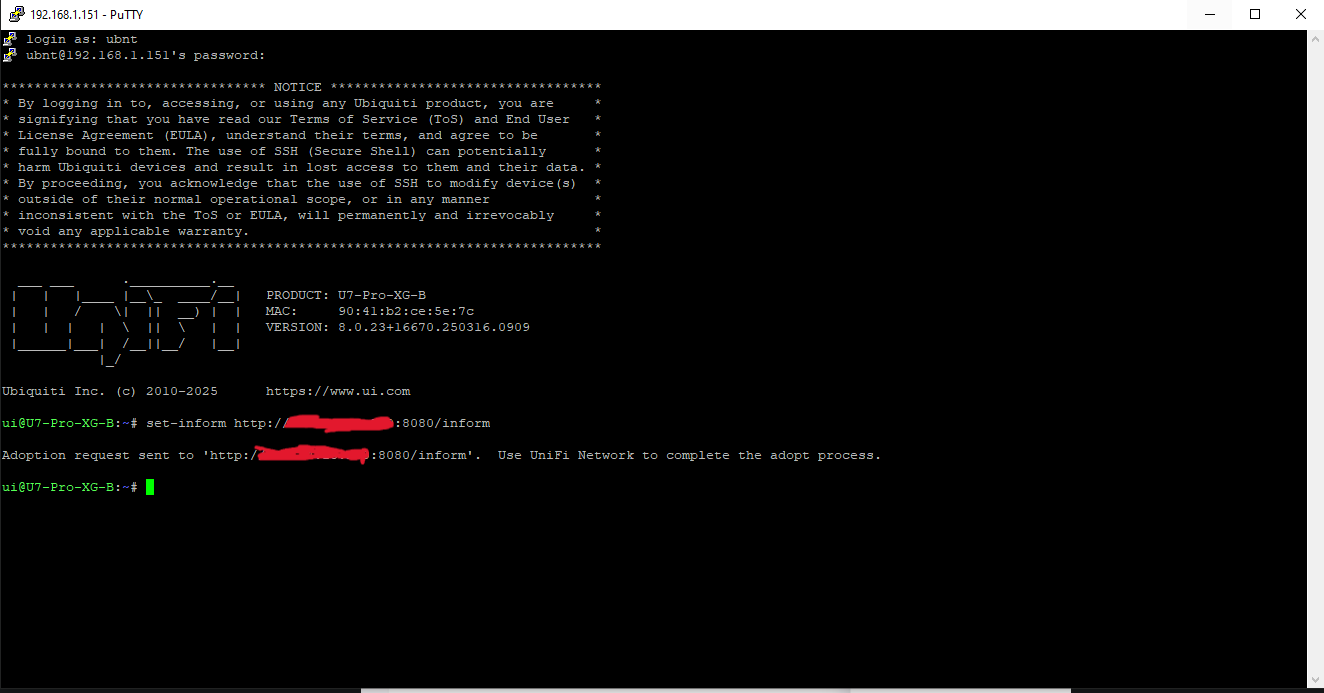
set-inform http://ENTER THE IP ADDRESS OF YOUR UNIFI OS SERVER:8080/informFor example if you are using an AWS EC2 instance like me to self-host your UniFi OS Server, you would type in the public/elastic IP address of your instance.
set-inform http://220.255.233.97:8080/informRandom public IP I used as an example.
Once you have typed in the command, you will get an output that says "Adoption request sent to 'http://YOUR IP ADDRESS:8080/inform'. Use UniFi Network to complete the adopt process". Note that UniFi Network is the application that comes with the UniFi OS Server application. If you haven't caught up with the changes read here.
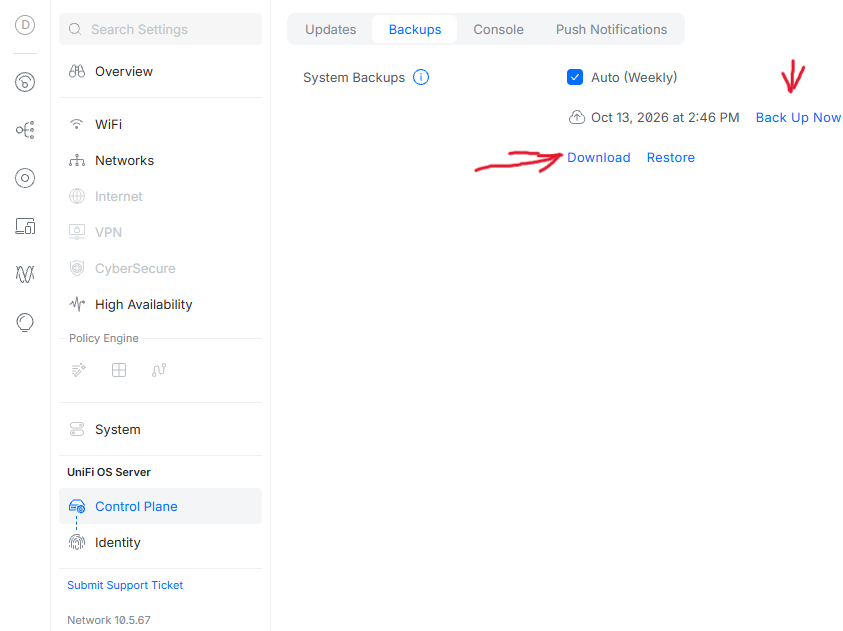
Since I am simply upgrading to a newer model AP, all I did was 1. Make sure I ran a backup of my settings. If you have already installed the UniFi OS Server application, go to Settings - under UniFi OS Server, Control Plane - Backups - Back Up Now to get an up to date backup, then Download.
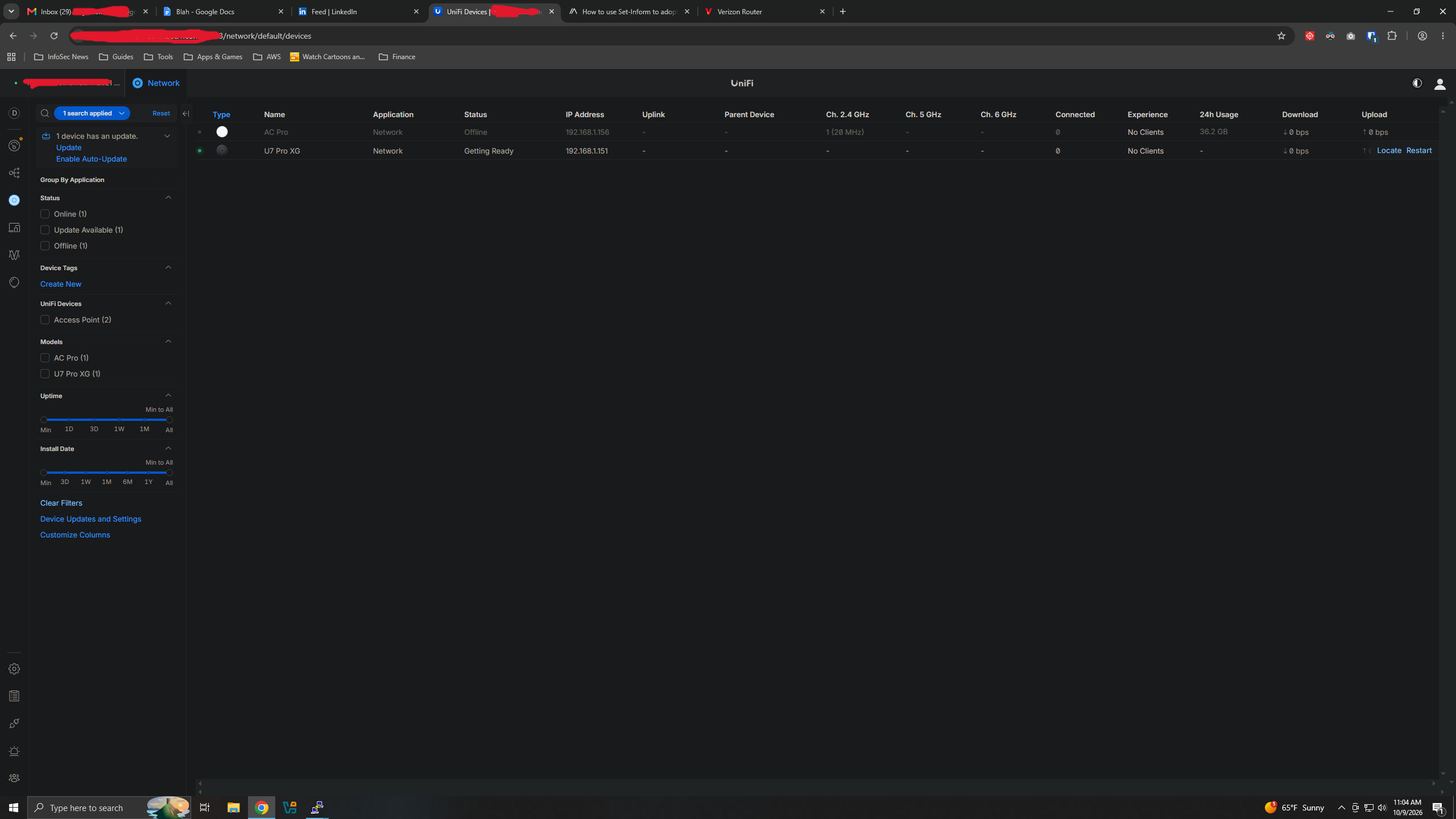
- Go back to UniFi Devices on the left and there should be an option that says adopt device. It will take a few minutes for the device to be adopted. It will show a status of Getting Ready which should later update to Online. Once it is online, go ahead and update the firmware of the AP. I highly suggest you bookmark this UniFi releases page here. It will help you stay on top of security advisories, as well as any new updates for UniFi OS Server.
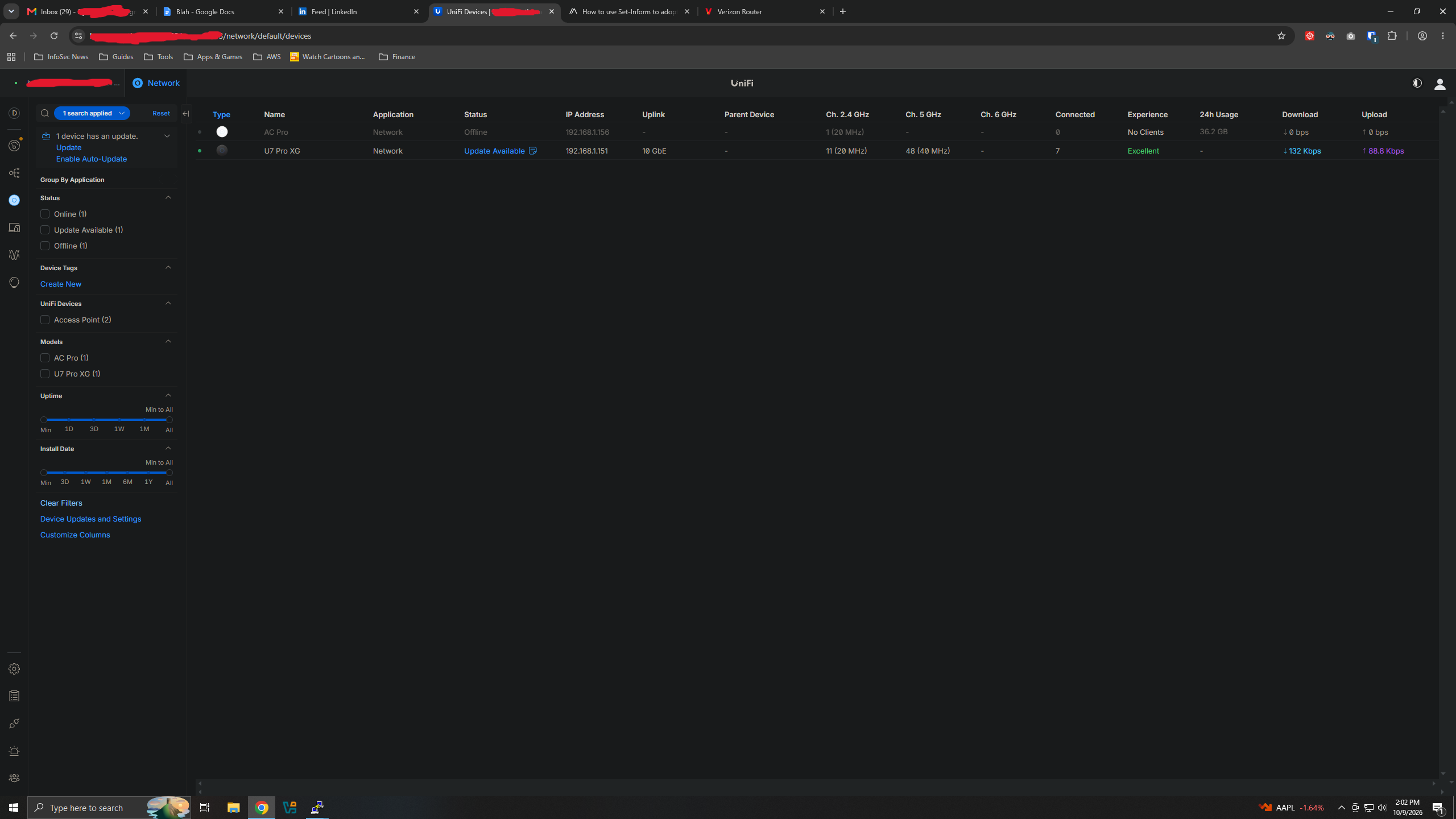
The last thing you should do is enable the 6 GHz radio band which is used by WiFi 6E and WiFi 7 devices. To enable the 6 GHz band, go to Settings - WiFi, click on your network name then click the check box for 6 GHz under Radio Band.
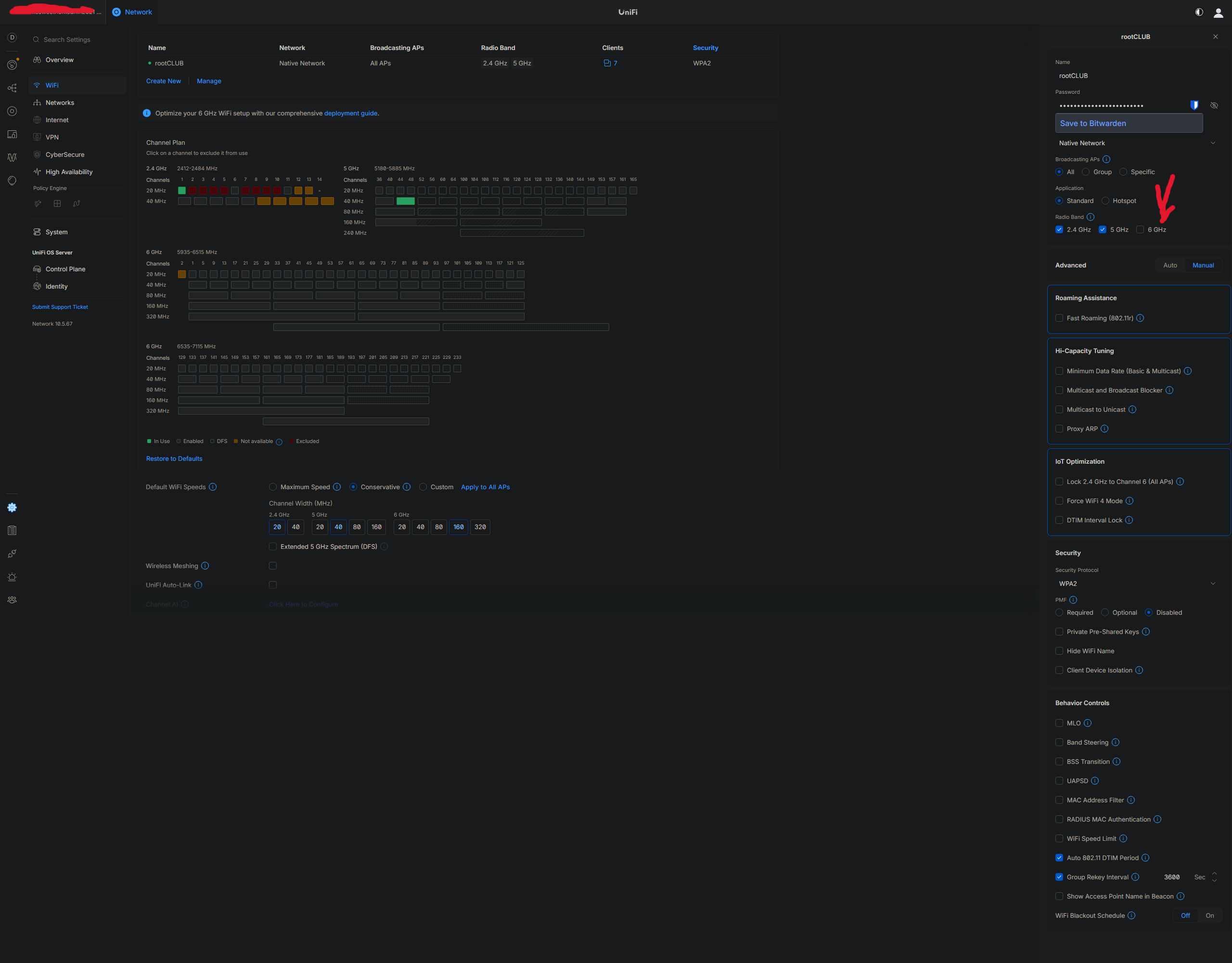
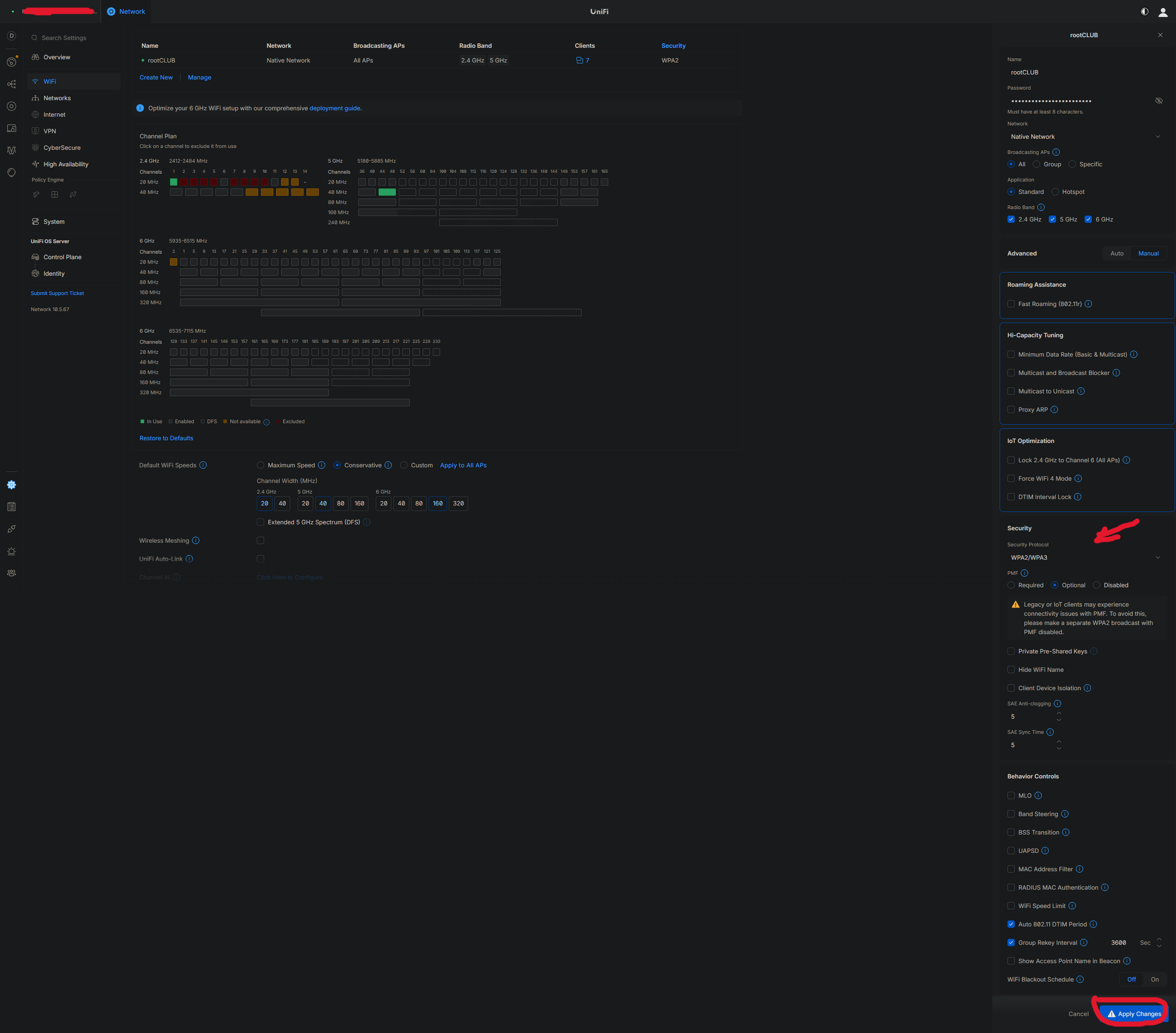
WPA2/WPA3 will be automatically selected as the security protocol. A warning will also appear letting you know that legacy or IoT clients may experience connectivity issues with PMF. To avoid this, make a separate WPA2 broadcast with PMF disabled.
Investment Well Spent
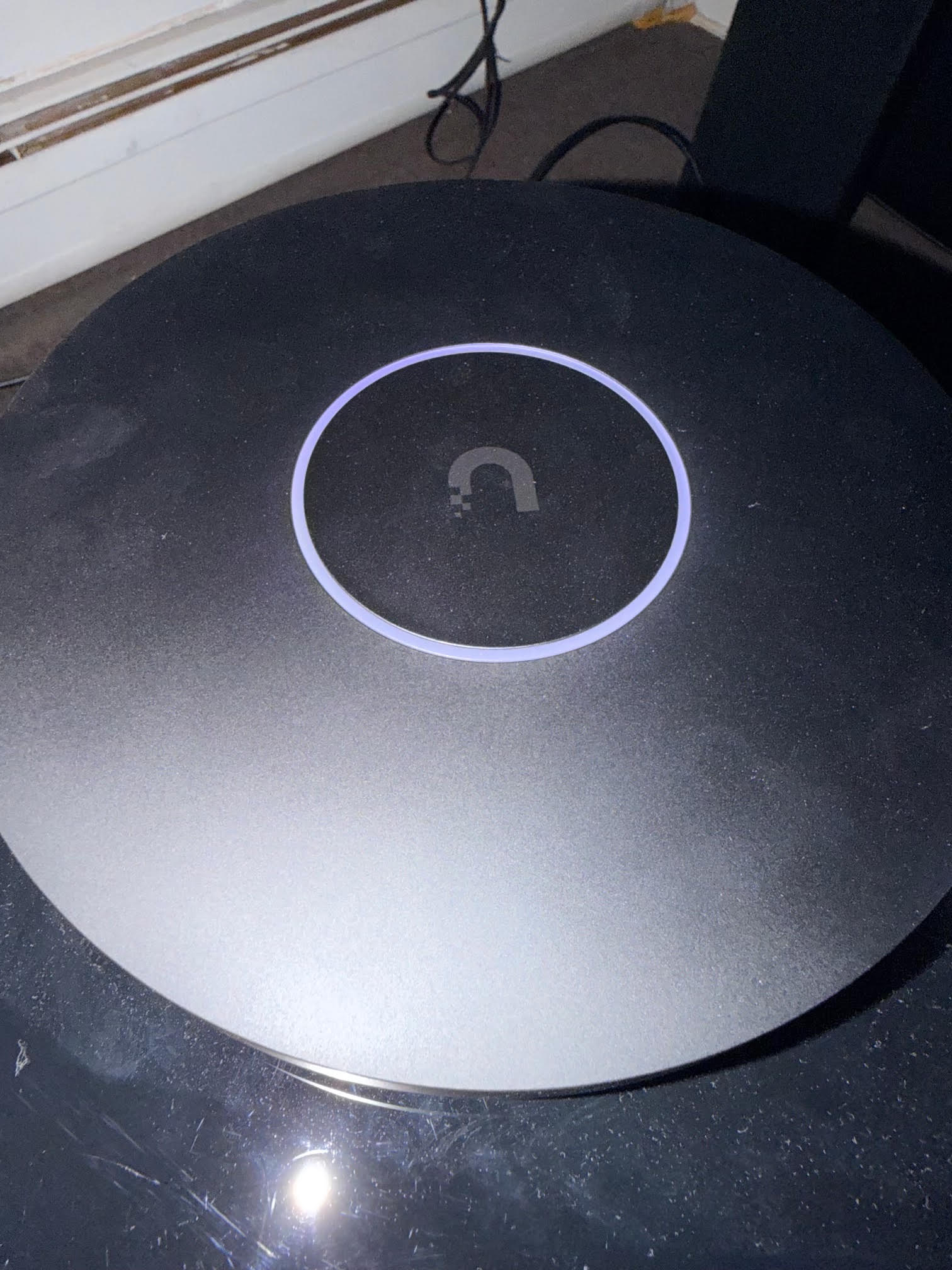
That's a wrap! If you found this guide helpful or have any suggestions, let me know. Play around with some settings. This is the second AP I have owned from Ubiquiti and I loved the AC Pro. I never had any issues, but it was time to upgrade. I did notice that this U7 Pro XG does get hot so be careful touching the bottom. I didn't mount mine and instead placed it on a TV stand near a window with a small gap to allow air to come in. Lastly, if you need help with tuning settings, refer to this reddit post here.
References: